Switching receipt apps: keep your old records, move in an afternoon
Short answer: export everything from your old app first, keep those files as your archive for past years, and bring current receipts into Bagging through the photo library. Nothing gets lost, and the whole move fits in an afternoon.
The order matters. Whatever app you are leaving, export your data while the app still opens and the subscription (if any) is still active. Do that before deleting anything, and switching becomes low-stakes: your history is in ordinary files that belong to you.
Step 1: export every report from your old app
In your old receipt app, find the export or report feature. Most receipt apps generate a CSV file of the data and a ZIP or folder of the receipt images; some add a PDF report. Exact labels vary by app and version. Select the CSV and the images, share the files to yourself, and save them in the Files app. Repeat for each report or trip, including past years.
Step 2: keep those exports as your archive
The files you just exported are your permanent record for past tax years. Store them in Files or iCloud Drive alongside your other tax documents. In Canada, the retention window is six years from the end of the tax year a record relates to, and a folder of CSV, PDF, and image files satisfies it without depending on any app.
Step 3: save the images you still need to Photos
In the Files app, tap the ZIP to extract it and open the folder. Select the receipt images from the current tax year, then Share → Save Images. They land in your photo library, which is Bagging's import door.
Step 4: import into Bagging
In Bagging, tap Add, then Choose from library, and select up to 100 receipt photos at once. Bagging reads each one into a single review list: confident reads are pre-checked, unclear ones are flagged for a quick fix, and likely duplicates are called out before they land. Every field stays editable, and each receipt files under its printed date.
What about the receipts that arrive by email?
Not every receipt is paper, and the emailed ones are the easiest to lose track of. Bagging gives you a personal address you can forward them to from any mail app. The bill arrives ready to confirm, PDF attachments keep their original quality, and bills written into the body of the message are read from the message itself. Nothing joins your list until you approve it.
Two practical uses when you are moving over. Forward the receipts sitting in your inbox rather than screenshotting them, and set a mail rule at your supplier or subscription senders so future bills arrive without you touching them.
What changes after the switch
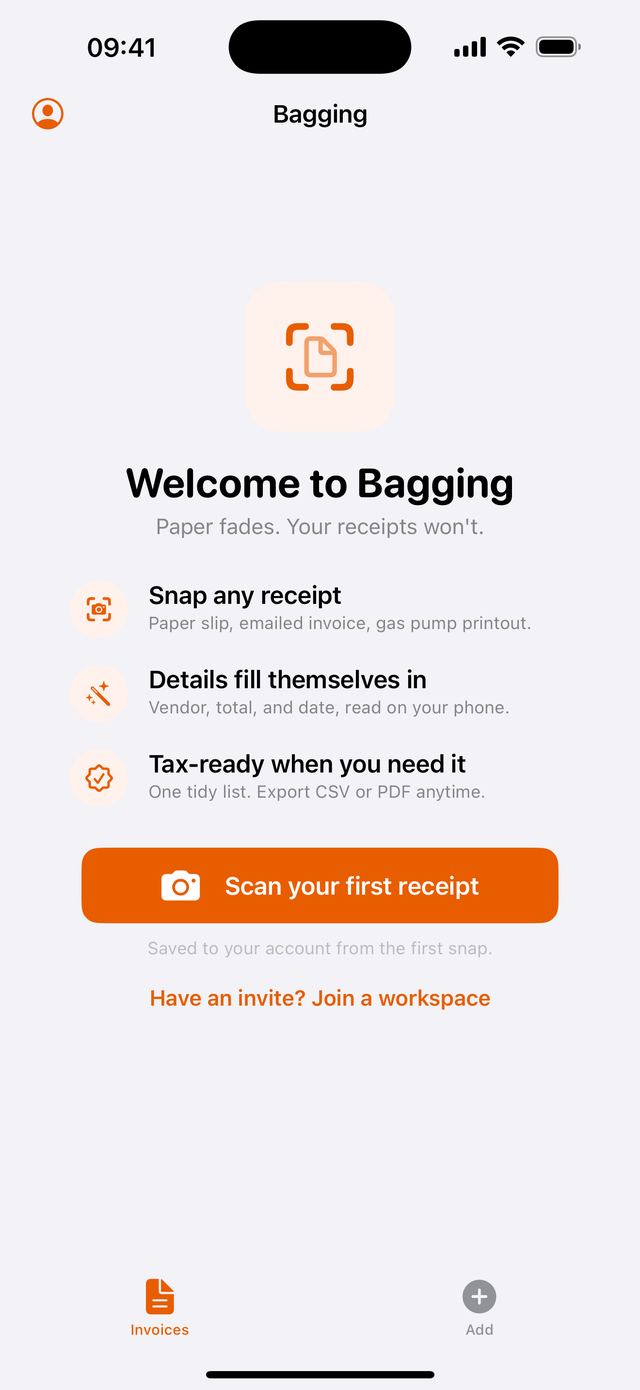
- Scanning is on-device and free: no per-scan meter, no ads, no subscription.
- Receipts can arrive three ways: photographed, forwarded to your Bagging address, or imported as a PDF.
- Receipts and photos are saved to your account, not just on one phone. Sign in on a new iPhone and your list is there.
- Tags label each receipt at capture, which makes categorizing receipts for taxes a month-end skim instead of a spring project.
- Any date range exports as CRA-ready CSV or PDF whenever you need it.
And to be straight about what Bagging does not do: no bank connections, no mileage, no multi-currency. If those are core to your workflow, the buyer's guide lays out which kind of tool fits which job. If price is the reason you are moving, start with what free actually includes in a receipt scanner.
Common questions
Can Bagging import a CSV from another receipt app automatically?
Not today. Receipts come in through the photo library: Bagging reads the vendor, total, and date from each image on-device, and you confirm before saving. Your exported CSV stays useful as the spreadsheet record for past years.
Will I lose my old reports when I switch receipt apps?
Not if you export first. The CSV, PDF, and image files you export are ordinary files that belong to you. Saved in the Files app or iCloud Drive, they remain your archive for past tax years regardless of which app you use going forward.
Do I need to move every old receipt into Bagging?
No. Keep past years as the exported files and bring the current tax year into Bagging, so your running totals and year-end export are complete. A full multi-year migration is workable too: batch import brings in up to 100 photos at a time.
Does Bagging charge to scan the receipts I import?
No. Text recognition runs on your device whether you snap a new receipt or import an old photo. There is no per-scan meter and no ads, and receipts and photos are saved to your account with CSV and PDF export for any date range.
Scanning included, no meter
Bagging is a free iPhone app: snap a receipt, on-device text recognition reads the vendor, total, and date, the photo stays audit-ready for years, and any date range exports as CSV or PDF.
Export steps and menu labels differ between apps and versions; check your old app's own documentation for specifics. This page is general information, not tax advice.